

Pinterest: Add Link-in-Bio
Add a link to the introduction section of your Pinterest bio, located at the top of your profile. Use this to increase traffic to your RateCards services in order to sell more.
💡 Tip: Boosting traffic to your RateCards link increases sales of your services.
How to add Link-in-Bio to Pinterest profile
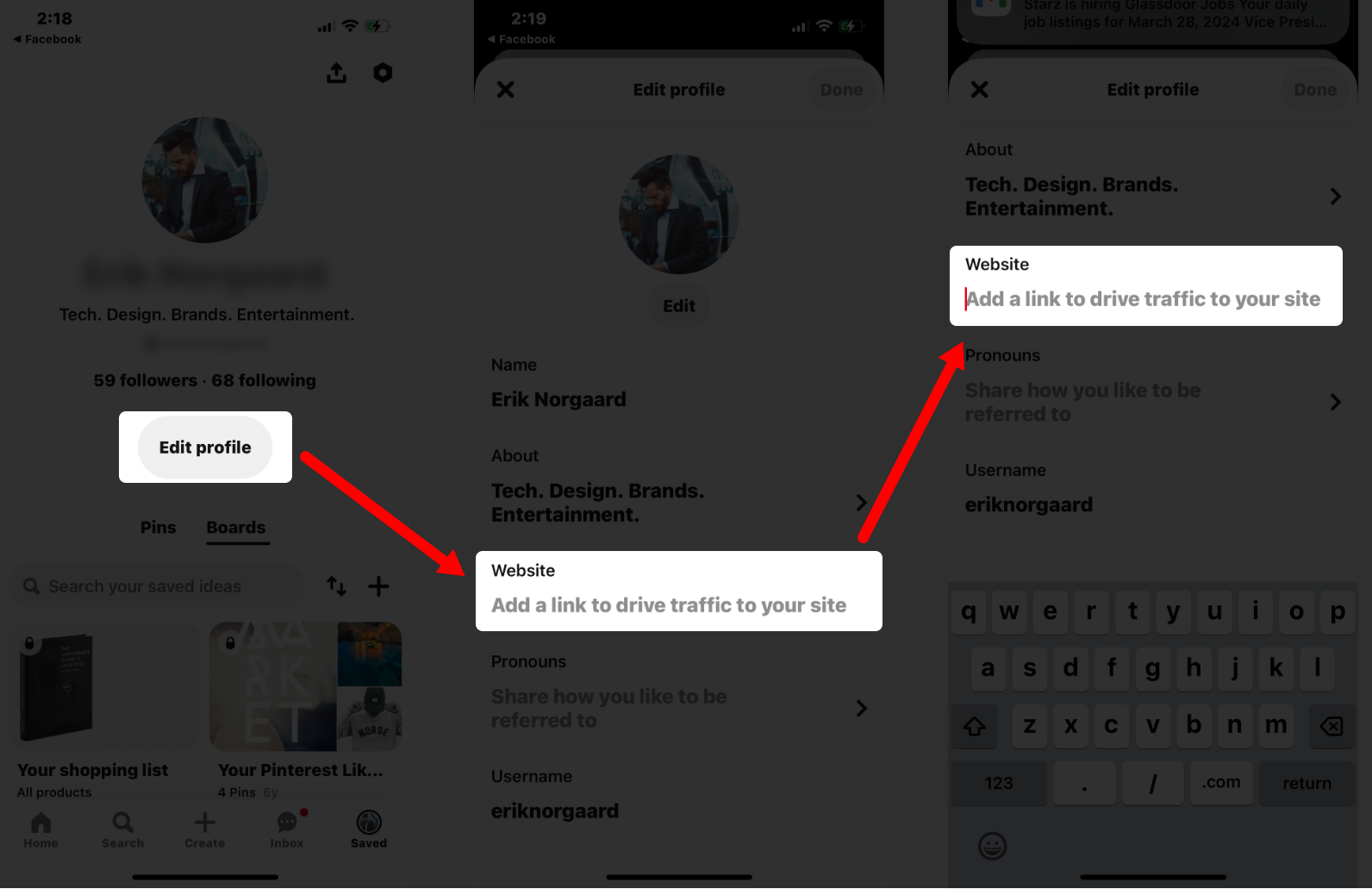
On mobile device: Here’s how to add a link to your Pinterest bio:
- Open the Pinterest app on your device
- Tap on your account profile image
- Below your profile picture, tap the ‘Edit profile’ button
- In the ‘Edit profile‘ section; scroll to the ‘Website‘ section.
- Tap the ‘Add a link to drive traffic to your site‘ text
- Paste in the URL from your RateCards profile. in the text field. Learn more.
- Hit the ‘Save‘ button
FAQ
Can I share my RateCards link in a post?
Yes. Post an image (screengrab) of your RateCards profile. In the description, paste the link to your RateCards profile.
How do I get more traffic from Pinterest to my RateCards account?
Boosting a post on Pinterest can drive more engagement to your RateCards profile and help sell your services. Follow Pinterest’s rules for boosting a post.
Related Articles
How-Tos
Instagram: Add link-in-bio
TikTok: Add link-in-bio
YouTube: Add link-in-bio
Facebook: Add link-in-bio
X (Twitter): Add link-in-bio
Reddit: Add link-in-bio
LinkedIn: Add link-in-bio
Yelp Business: Add link-in-bio
Create your profile
Add rate cards
Request payment

Sell your side-hustle & freelance services

Product
Features
How it Works
Use Cases
Resources
Help Center
Getting Started
Earn w/ RateCards
Account Support
How-Tos
Company
About Us
Blog
Privacy Policy
Terms of Service
Contact Us