
LinkedIn: Add Link-in-Bio
If you turn on creator mode, you will be able to add a link to the introduction section, located at the top of your profile. You can use this to increase traffic to your RateCards account. If you turn off creator mode, the link will no longer be displayed on your profile.
💡 Tip: Boosting traffic to your RateCards link increases sales of your services.
💡 Tip: Adding a link to your profile is different from adding a website to your profile or adding a Premium custom button. Adding a Premium custom button is available only for LinkedIn Premium Business subscribers.
How to add RateCards profile to your LinkedIn bio
On mobile device: Here’s how to add a link to your LinkedIn bio:
- Open the LinkedIn app on your device
- Tap on your account
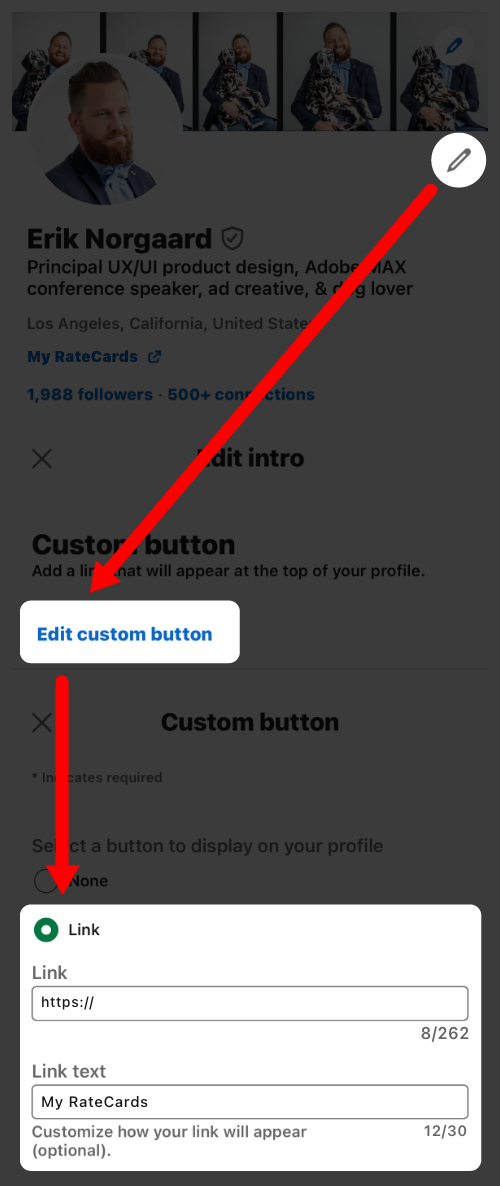
- In the top right corner across from your profile picture, tap the Edit profile icon (pencil)
- In the ‘Edit Intro‘ section; scroll to the bottom to the ‘Custom Button‘ section.
- Tap the ‘Edit custom button‘ text
- Next, select a button to display on your profile. Choose ‘Link‘
- Paste in the URL from your RateCards profile. in the ‘Link‘ text field. Learn more.
- In the ‘Link text‘ text field; Type in the words ‘My RateCards‘
- Hit the ‘Save‘ button
FAQ
Can I share my RateCards link in a post?
Yes. Simply copy and paste.
How do I get more traffic from LinkedIn to my RateCards account?
Boosting your post in LinkedIn can drive more engagement and help sell your services.
Related Articles
How-Tos
TikTok: Add link-in-bio
Instagram: Add link-in-bio
YouTube: Add link-in-bio
Facebook: Add link-in-bio
X (Twitter): Add link-in-bio
Yelp Business: Add link-in-bio
Reddit: Add link-in-bio
Pinterest: Add link-in-bio
Create your profile
Add rate cards
Request payment

Payments + Booking App for Service Providers
Product
How it Works
Use Cases
Resources
Help Center
Getting Started
Earn w/ RateCards
Account Support
How-Tos
Company
About Us
Blog
Privacy Policy
Terms of Service
Contact Us